
Theme Section - FAQ & Icons
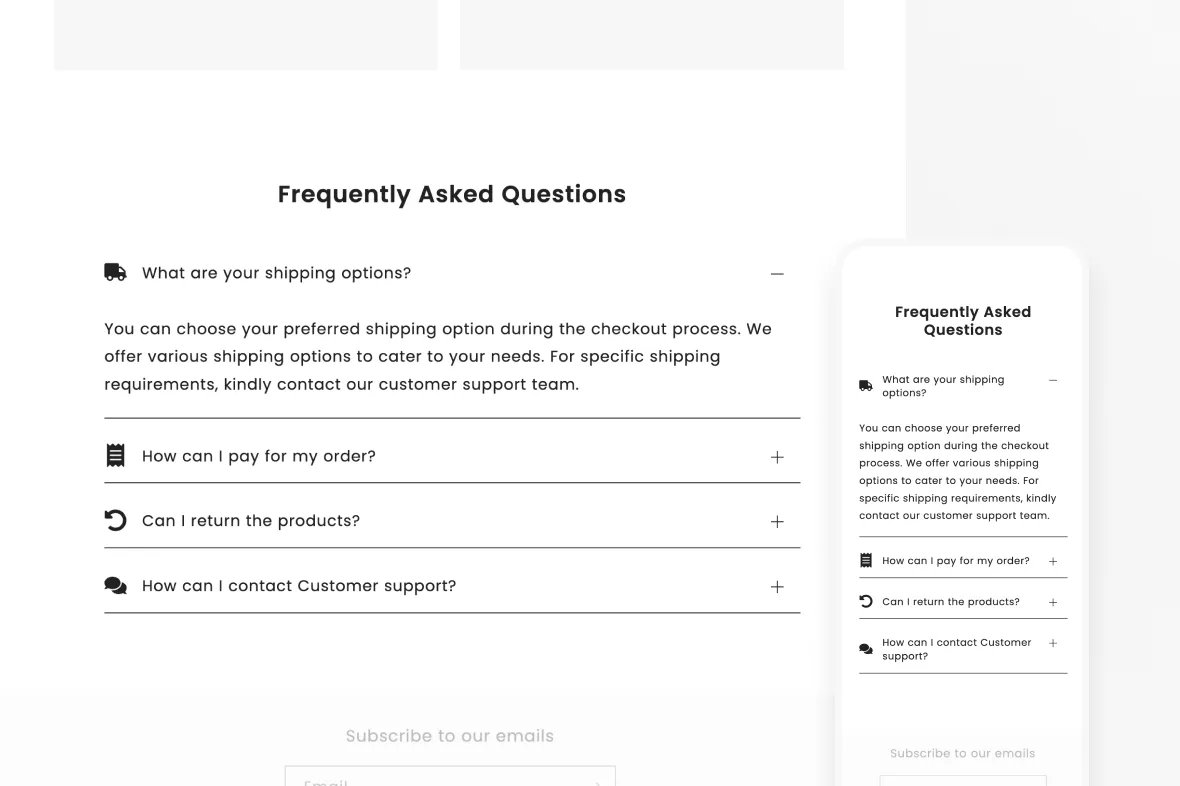
The FAQ & Icons section provides a clean, easy-to-navigate layout that helps customers quickly find answers to common questions. With support for icons beside each FAQ item, this section adds a visual touch that enhances clarity and improves the browsing experience.
📌 Key Features
-
Choose from a built-in icon library or add your own
Select icons that match your store’s aesthetic or upload custom ones for a personalized look.
-
Organize common questions with a visual touch
Icons help guide customers through topics, making your FAQs easier to scan and understand.
-
Fully customizable to match your store's design
Adjust colors, spacing, typography, icon size, and layout for a cohesive and branded appearance.
💡 Want to see this theme section in action? Go to our demo store here to experience this intuitive theme section, along with our other Theme Sections!
Installing the FAQ & Icons theme section to your Shopify theme
Before going to the Shopify Theme Editor to insert this theme section, you would first need to install it from the Theme Sections & AI Pages app.
For a complete list of instructions, you may refer to this article: Getting Started with Theme Sections and AI Pages app
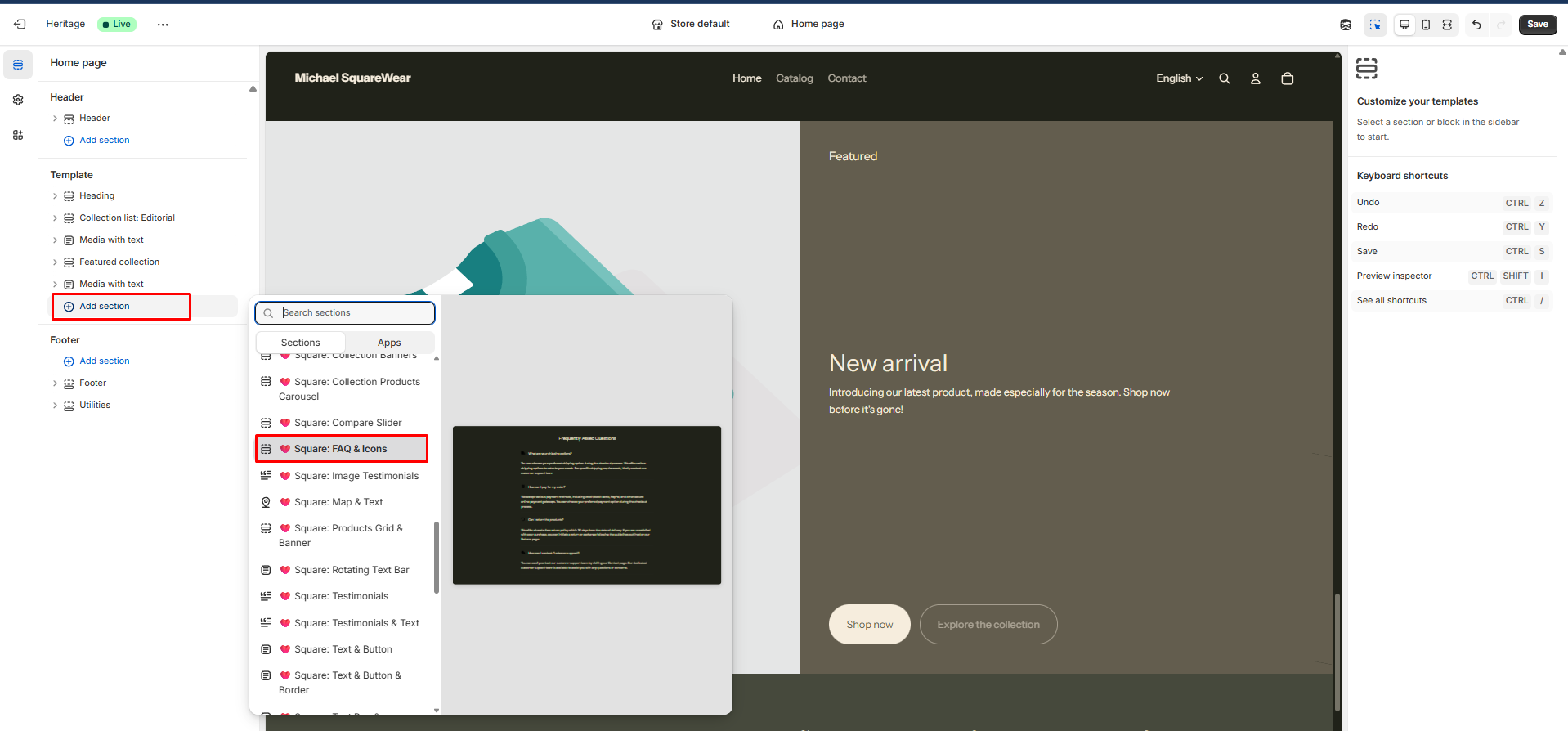
Once you have successfully installed the theme section, you can now go to the Shopify Theme Editor and insert it by clicking Add section > 🩷 Square: FAQ & Icons :
Customizing the FAQ and Icons Theme Section
Customizing this theme section is easy, as all its appropriate settings are already found inside the theme editor. You just need to click on a specific element of the theme section (on the left sidebar), and its customizable settings will appear on the right sidebar.
Removing a Theme Section
Removing an unwanted theme section is as easy as clicking the Remove section button after selecting a theme section:
🎨 Styling Tips
- Use simple, recognizable icons to represent each question category.
- Keep answers short and direct to maintain readability.
- Group similar questions together to reduce confusion and improve user flow.
- Use spacing and dividers to keep the FAQ section clean and uncluttered.
Create a visually engaging, easy-to-read FAQ section that helps customers get answers faster.