
Setting up the Wishlist app
The Wishlist app by Square allows customers to save products they love and purchase them later. Wishlists help shoppers keep track of items they are interested in and give you valuable insights into which products are most popular among your visitors.
Wishlist features can increase engagement, encourage repeat visits, and improve your store’s conversion rate.
Why Use a Wishlist on Your Shopify Store?
Customers often want to save products for later for many reasons:
- A product or size may be out of stock
- They want to purchase later
- They are comparing products
- They are planning gifts or special occasions
For merchants, wishlists provide valuable data about customer preferences, which can help you optimize marketing campaigns, product inventory, and promotions.
⚙️ How the Wishlist Works for Your Customers
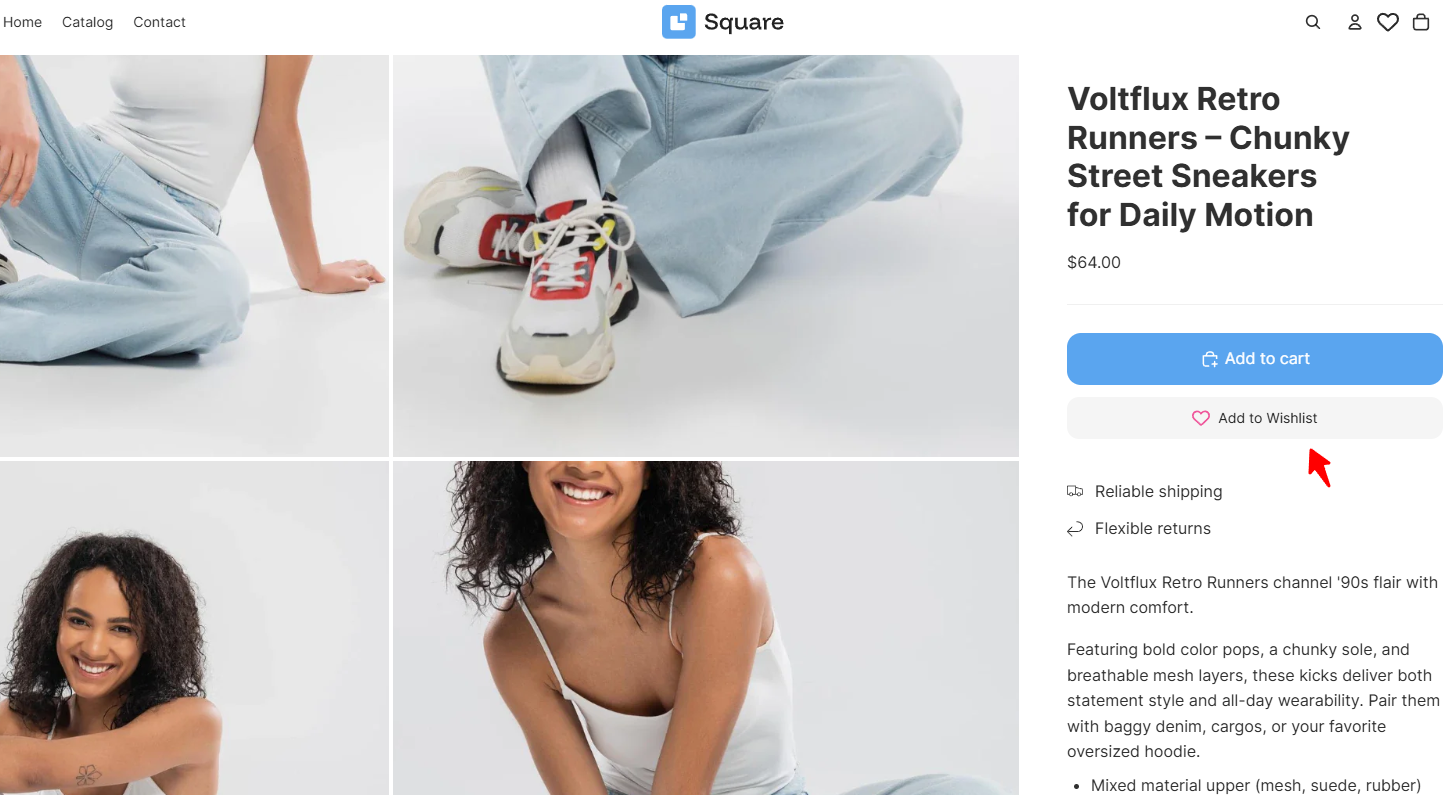
Customers can save products to their wishlist by clicking the Add to Wishlist button on the product page. Depending on your settings, shoppers may see an Add to Wishlist button, a heart icon on the main product image, or both.
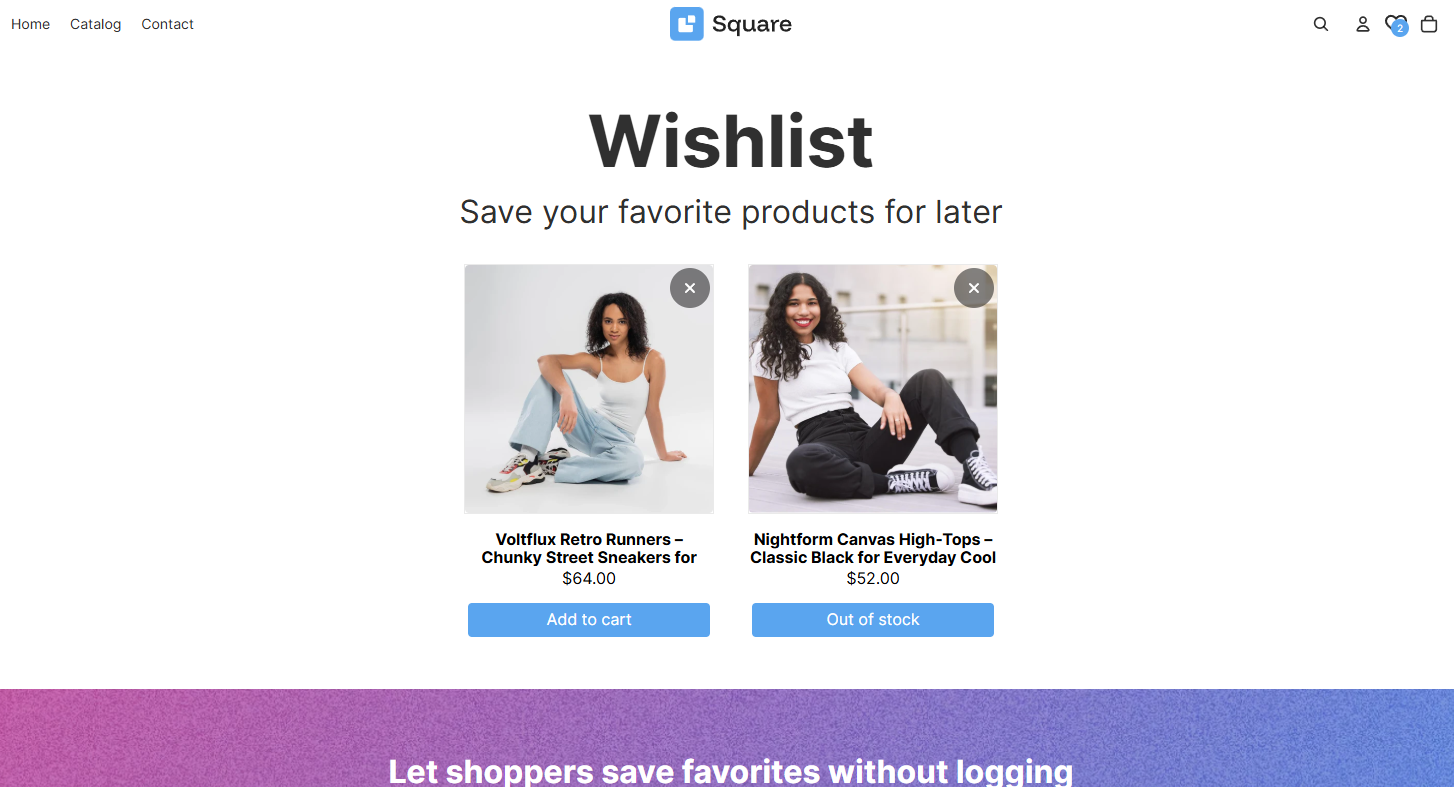
Once added, the product is saved on a dedicated wishlist page.
-

If a shopper is signed in to a customer account, their wishlist is saved to that account, so it's waiting for them whenever they come back. Guests' wishlists are saved in a browser cookie that lasts 365 days — clearing cookies, or switching to another browser or device, starts a fresh, empty list.
From the wishlist page, customers can:
- Add products directly to the cart
- Remove products from the wishlist
- Share their wishlist with others
- View stock alerts for items running low
Key Wishlist Features
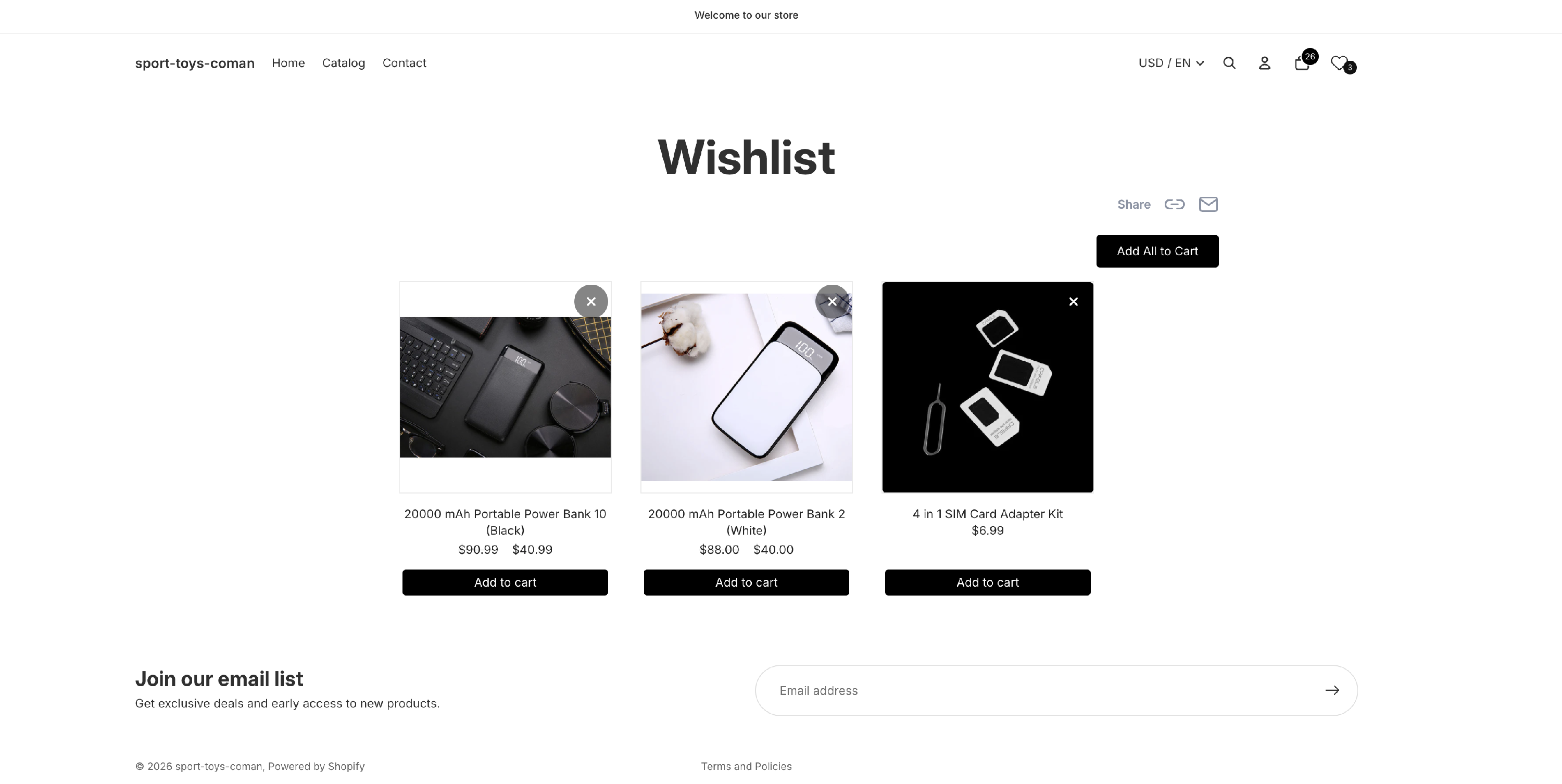
Add All to Cart Button
Customers can now add all products from their wishlist to the cart with a single click.
Instead of adding products individually, the Add All to Cart button allows customers to quickly purchase multiple wishlist items at once.
Highlights:
- Appears once the wishlist has at least 3 in-stock items, as long as Show the Add to Cart button is on (it is by default). Sold-out items and subscription products aren't counted and aren't added to the cart.
- Helps increase checkout conversions
- Button text is fully translatable, supporting multilingual stores
Low Stock Urgency Indicator
When a product saved in the wishlist is running low on inventory, customers will see a visual low-stock warning.
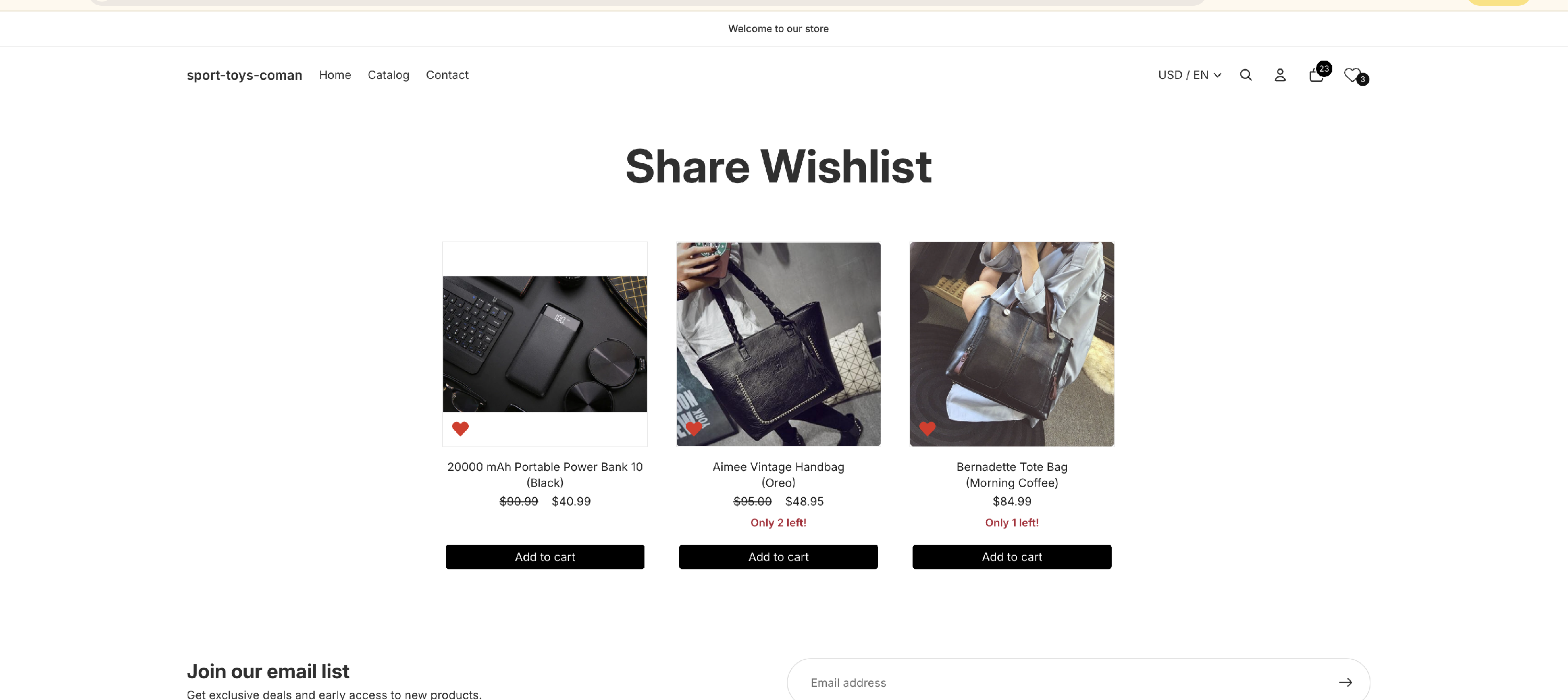
This creates urgency and encourages customers to purchase before the product sells out.
Customization options:
- Set the stock threshold (e.g., show warning when 5 or fewer units remain — 5 is the default)
-
Edit the low stock text — the default is Only {{ stock }} left!, where {{ stock }} is replaced with the number of units left
Customize the text color
Works on:
- Personal wishlists
- Shared wishlist pages
Wishlist Heart Icon in More Places
The wishlist heart icon is now displayed in more areas of your store, allowing customers to save products more easily.
Customers can now add items to their wishlist from:
- Product pages
-
Product cards on your home page, collection pages, search results and vendor pages
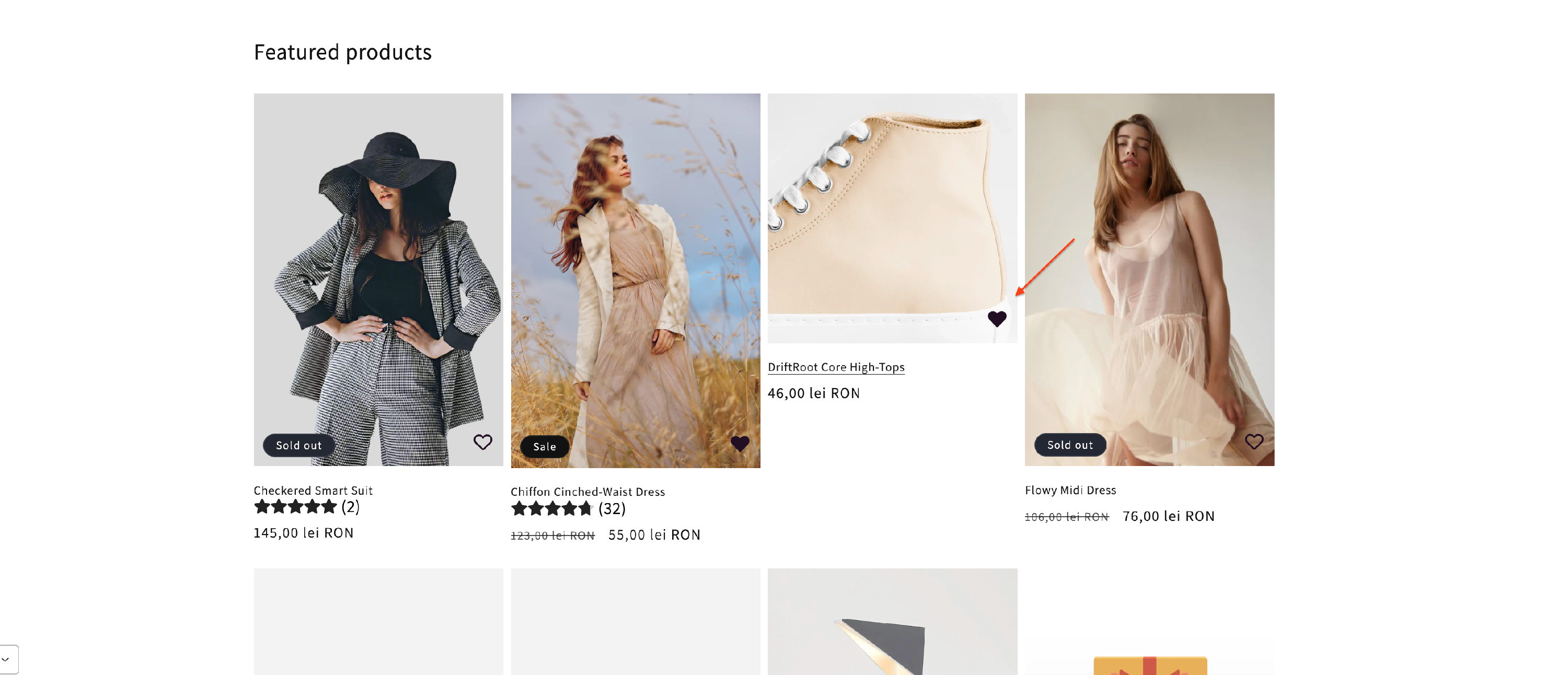
This expanded placement ensures customers can save products wherever they discover them.
The feature also works on themes with custom product card layouts that previously did not support the wishlist icon.
Shared Wishlist Improvements
Customers can now share their wishlist with friends and family.
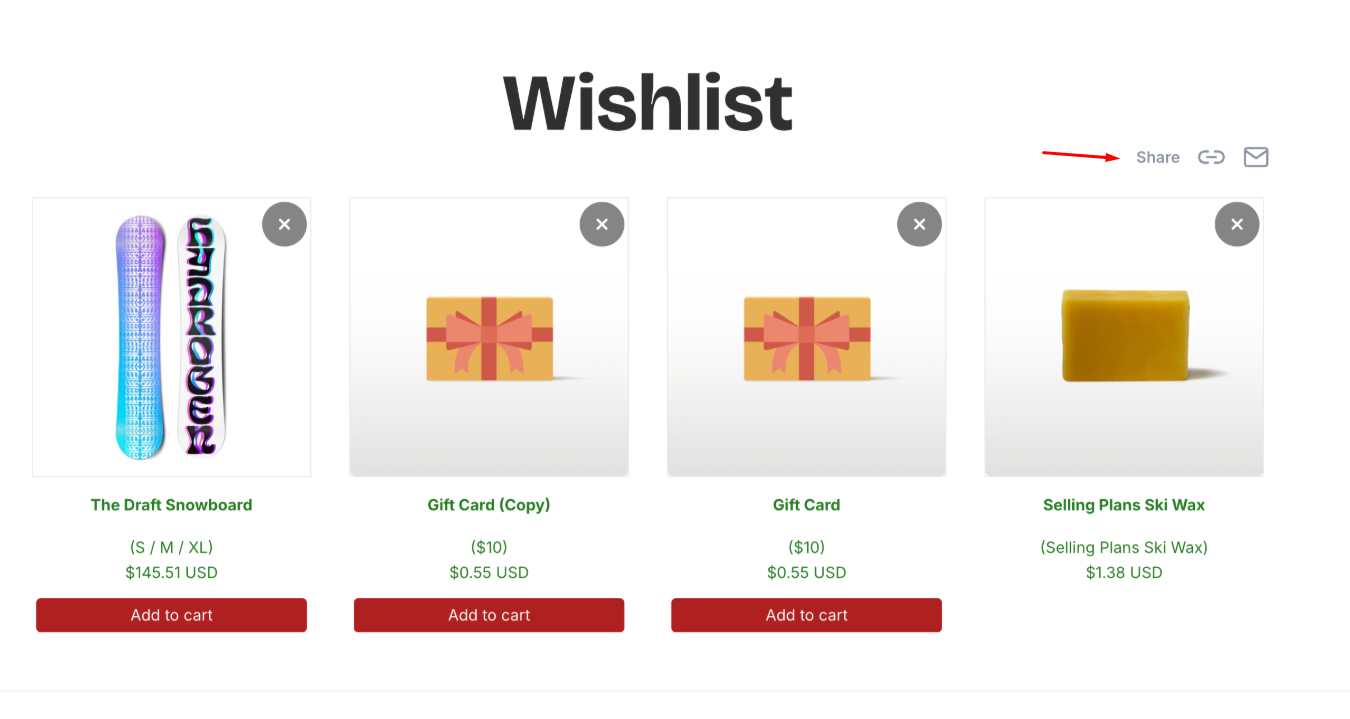
Wishlist sharing is perfect for:
- Gift lists
- Special occasions
- Product recommendations
Improvements include:
- Dedicated wishlist icon button
- Sharing via link or email
- Improved product title styling
- A more polished shared wishlist page
Configure the Wishlist Settings
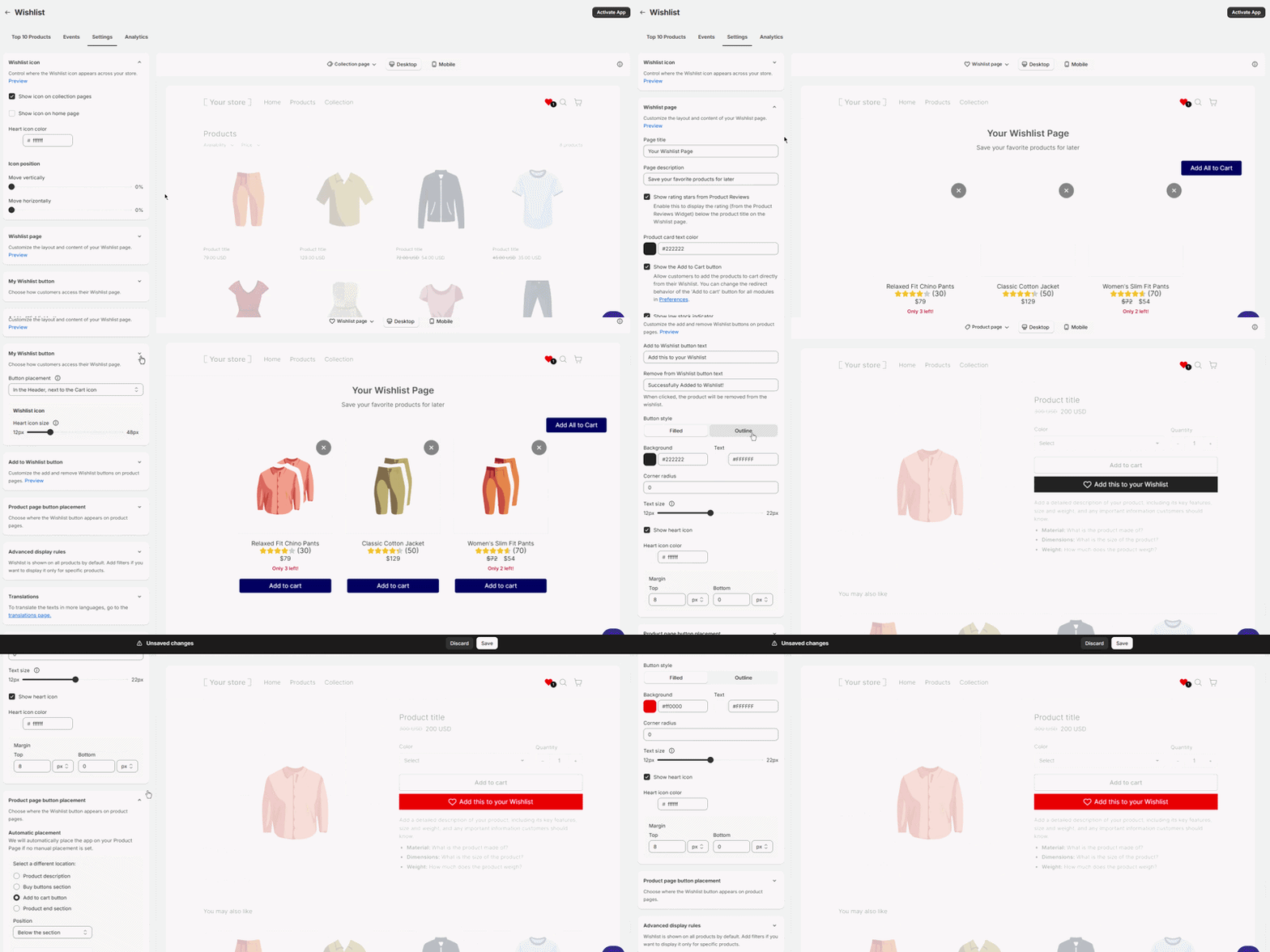
The Settings tab shows a live preview of your store beside a set of collapsible sections. Use the page selector above the preview — Product page, Home page, Collection page, Wishlist page and Share Wishlist — to check your changes on the page you care about. Work through the sections from top to bottom:
- Wishlist icon on product images — show a heart icon on product images across your store. Turn on Show icon on product cards (collections, search, and more), Show icon on home page and Show icon on the main image of the product page (all three are on by default), choose the Heart icon color, then use the Move vertically and Move horizontally sliders under Icon position to place the heart.
- Add to Wishlist button — turn on Show the Add to Wishlist button on the product page to add a Wishlist button to your product pages. This setting is off by default, so switch it on if you want the button. Once it's on, this section is where you choose the Button type (see Choosing the button type below), edit the add and remove button text, style the button, and choose where it appears — including a Custom CSS selector if your theme needs one.
- My Wishlist button — choose how customers get back to their Wishlist page. Button placement can put a heart icon in your store header next to the cart (the default), a button on the product page next to the Add to Wishlist button, or nowhere, if you'd rather add a Wishlist link to your menu yourself. The header icon shows a live count of saved items, and you can adjust its size, thickness and color, plus the count badge's colors, size and position.
- Wishlist page — customize the Wishlist page itself: its Page title and Page description, the product card text color, the low stock indicator, and whether shoppers can add items to the cart from the page (Show the Add to Cart button). The Your Wishlist page box at the bottom shows the live link to your page and lets you change its URL path — useful if you've changed the app proxy in Shopify.
- Advanced display rules — restrict which products or pages the Wishlist app runs on. If a heart icon or button isn't appearing where you expect, check this section first.
- Translations — edit the shopper-facing text the app shows, and open the Translations page to translate it into more languages. The Add All to Cart label is edited in the Wishlist page section instead.
If you turn on both the Add to Wishlist button and the heart icon on the main product image, the Add to Wishlist button section shows a short note that both are active and points you to Wishlist icon on product images. Running both together is a common setup, not a conflict.
Choosing the button type
Once the Add to Wishlist button is on, go to Wishlist → Settings → Add to Wishlist button and pick a Button type:
- Full-width button — a labeled button on your product page. This is the default, so nothing changes until you switch.
- Inline button — a compact heart on the same line as Add to cart.
With Inline button selected, you can style the heart:
- Position — Left of Add to cart or Right of Add to cart.
- Button style — Filled or Outline, with its own background, border and icon colors.
- Corner style — Same as Add to cart copies the corner shape of your theme's Add to cart button, or choose Custom and set a Corner radius.
- Icon size — how big the heart is.
The inline heart always sits next to Add to cart, so the button location setting isn't used while Inline button is selected. If your theme's Add to cart line has no room for the heart, or the page has no Add to cart button, no Wishlist button appears on that page. Switch back to Full-width button if that happens.
Wishlist Analytics
Analytics Cards
The Analytics section shows quick stats about Wishlist activity for the past 30 days:

- Wishlists – Total number of wishlists created
- Products – Number of unique products added to wishlists
- Total Value – Combined value of all products currently saved
- Average Wishlist – The average value of a wishlist saved by your customers
Top 10 Products

This section shows the 10 most wishlisted products, sorted by popularity.
Product variants are grouped together, meaning only the main product is counted.
Events

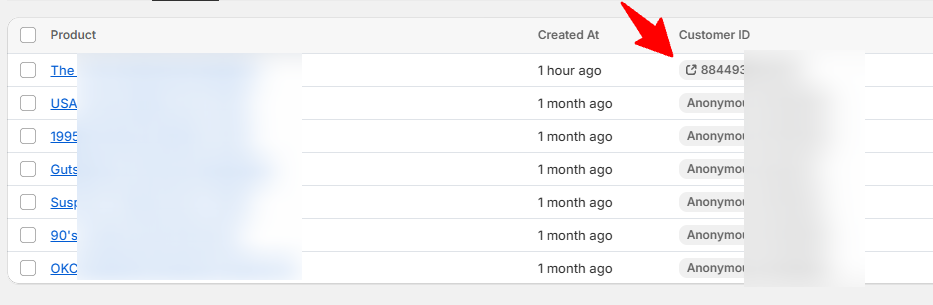
The Events tab shows real-time wishlist activity, including:
- Recently added wishlist items
- Anonymous visitor activity
-
Customer accounts (if logged in)
-
Visitors without accounts are tracked using unique Anonymous IDs.
Exporting your wishlist data. Once your store has at least one saved wishlist item, an Export CSV button appears above the Events table. It downloads every wishlist item saved in your store — not only the rows on the page you're looking at — as a spreadsheet file. Each row is one saved item, with the shopper's ID, whether they were a logged-in customer or an anonymous visitor, the product and variant, and the date it was saved. Sorting the file by customer ID groups each shopper's whole wishlist together.
Note: If a visitor not signed in adds products to the wishlist but then logs in to his user account in the store in the same session, the products he added to the Wishlist will be transferred to his user profile/customer ID.
Frequently Asked Questions
Can I import wishlist data from another app?
Currently, importing wishlist data from other apps is not supported, but the feature is being considered for future updates.
The wishlist icon should appear in the header but it doesn’t show. Why?
If the icon does not appear in the header after selecting the option, your theme may use a custom navigation structure.
Contact our support team and we will help you place the icon correctly.
Can I put the Add to Wishlist button somewhere my theme doesn't support?
Yes. In the Add to Wishlist button section of your Settings tab, set the location to Custom CSS selector, enter the selector for the element you want the button next to, then choose its Position relative to that element. This option isn't used while Button type is set to Inline button.
On product pages, the button appears at the first element that matches your selector. On other pages — your home page, collection pages and search results — every matching element gets its own button, so one selector can add the button across a whole grid of products. The app works out which product each button belongs to from the surrounding page, and skips any match where it can't tell.
Not sure which selector to use? Reach out to our support team and we'll help you find it.
Can products stay in the wishlist after adding them to the cart?
Currently, adding a product to the cart removes it from the wishlist automatically.
We are exploring options to allow products to remain in wishlists based on user feedback.
Does the Wishlist sync across devices?
Yes, but only when customers are logged in. If your store has customer accounts enabled and the shopper is signed in, their Wishlist is tied to their account and will follow them to any device they log in from.
If your store doesn't use accounts, or the customer adds items without signing in, the Wishlist is saved only to that device's session. Opening the store on a different device will start a fresh session, and the previously saved items won't appear.
Why can’t I see the “Add to Wishlist” button on the product page?
The button is off by default. Go to Wishlist → Settings → Add to Wishlist button and turn on Show the Add to Wishlist button on the product page. If it's already on, check Advanced display rules — a rule may be excluding that product or page.
If the Show icon on the main image of the product page setting (in the Wishlist icon on product images section) is enabled, customers can still add products to their wishlist using the heart icon shown on the main product image.
I switched to the inline button, and the Wishlist button disappeared. Why?
The inline heart needs room on the same line as your theme's Add to cart button. If that line is full, or the page has no Add to cart button, no Wishlist button appears there at all — it won't fall back to the full-width button. Go to Wishlist → Settings → Add to Wishlist button and set Button type back to Full-width button, or contact us with your theme name and we'll take a look.